
Free Fire Lag Fix — Free Fire FPS Boost Settings
Lag in Free Fire is not just annoying — it costs you fights. A frame drop at the wrong moment means a missed shot, and a spike during a rush means you walk straight into someone’s crosshair. A free fire lag fix is not a settings list copied from a flagship phone; it is the right settings for the phone in your hands.
The tool below measures the device you are playing on right now. It reads your hardware, runs a real graphics load at a fixed resolution, and shows the graphics and FPS settings your phone can actually hold — plus ready-made presets for 1GB, 2GB, 3GB, 4GB, 5GB, 6GB and 8GB+ RAM devices.
Reads your real hardware, then measures what it can actually do — GPU render cost, CPU throughput, and whether your phone throttles under sustained load. Nothing is uploaded; it all runs in your browser.
gl.finish() to force the GPU to complete them, and times that batch with performance.now(). That removes the vsync ceiling and gives a real per-frame render cost at a fixed 1280×720 internal resolution, which is what makes two devices comparable. Worst 10% is the slowest tenth of samples — the number that shows up as a stutter mid-fight. Throttle compares the first fifth of the run against the last fifth: a phone that heats up and drops clocks will show a positive figure here, and that is exactly what a lag fix has to solve.
Be honest with yourself about this. This is a browser GPU and CPU benchmark, not a copy of Free Fire’s renderer. It will not predict your exact in-game frame rate. Use it for the three things it is genuinely good at: telling you roughly which settings tier your phone belongs in, comparing two phones side by side, and revealing thermal throttling over a 60-second run. If a setting below makes your phone stutter, drop one tier rather than maxing everything out.
Tap Run device test and keep this tab in the foreground. Ten seconds is enough for a normal reading; the 60-second mode is the one that catches phones which start smooth and turn into a slideshow after four matches. If you already know your RAM, just tap your tab in the panel above and copy the settings.
Free Fire Lag Fix Tool — Test Your Device and Get Your Settings
This free fire lag fix tool answers two different questions, and most players only need one of them.
- What settings should my RAM tier use? Tap the 1GB, 2GB, 3GB, 4GB, 5GB, 6GB or 8GB+ tab in the panel above and you get a full preset instantly — no test, no install, no waiting.
- Is my specific phone fast enough, and does it overheat? Run the device test. It measures GPU render cost, CPU throughput and thermal throttling under a sustained load.
- Is the problem actually my connection? If your frame rate is stable but the game still feels delayed, the cause is ping, not graphics — check it with the Free Fire ping test tool.
How to Use the Free Fire Lag Fix Tool
- Close other apps, then open this page on the phone you actually play on.
- If you only want settings, tap your RAM tab above and copy them — you are done.
- Otherwise choose Quick for a normal check, or Sustained to test overheating over 60 seconds.
- Tap Run device test and keep the tab in the foreground until it finishes.
- Read the render cost first (lower is better), then the worst 10% and the stability line.
- Apply the recommended settings one at a time, not all at once.
- Test every change in Training Mode for five to ten minutes before you queue.
What the Tool Measures
- Render cost — milliseconds per 720p frame. This is the real performance number.
- Worst 10% — the slowest samples, which is exactly what you feel as a stutter mid-fight.
- Stability — how consistent your frame time is across the whole run.
- Throttle — how much performance your phone loses by the end of a 60-second load.
- CPU score — shows whether crowded fights will stutter even on low graphics.
Free Fire Lag Fix Settings by RAM — Which Tab to Pick
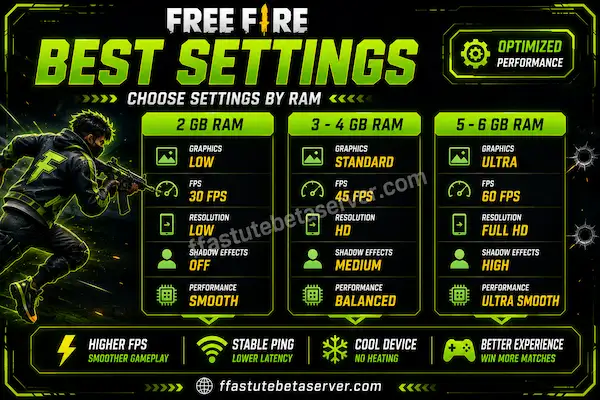
RAM sets a realistic ceiling even though chipset, storage speed and heat matter just as much. The table below is the same preset the tool gives you in the tabs, so you can compare every tier at a glance.
| Phone RAM | Graphics | Frame rate | Shadows | Effects | Background apps |
|---|---|---|---|---|---|
| 1 GB | Smooth (lowest) | Low (30 FPS) | Off | Off | Restart the phone before playing |
| 2 GB | Smooth | Medium to High | Off | Off | Close everything before ranked |
| 3 GB | Smooth | High (60 FPS) | Off | Low | Close all apps |
| 4 GB | Standard | High (60 FPS) | Off | Medium | Close 1–2 heavy apps |
| 5 GB | Standard | High (60 FPS) | Off | Medium | Close 1–2 heavy apps |
| 6 GB | Standard to Ultra | High to Ultra | On | High | Not needed |
| 8 GB+ | Ultra | Ultra (90–120 FPS) | On | High | Not needed |
The rule that wins fights is the same at every tier: lower graphics, higher frame rate. A steady 60 FPS with flat textures beats an unstable 90 FPS with shadows and effects on.
Is this free fire lag fix tool free and safe to use?
Yes. It runs entirely inside your browser, nothing is uploaded and no file is downloaded. It only reads the hardware details your browser already exposes and times a graphics load.
Why does the tool not show my in-game FPS?
Because browser animation is locked to your screen’s refresh rate, so an FPS counter would read 60 on almost every phone. This free fire lag fix tool reports render cost in milliseconds per frame instead, which is the number that tells you whether your device can hold smooth gameplay.
→ Download Astute Beta Server
→ Back to All Tools
→ Check Your FF Sensitivity Tool
→ Test Your Ping Before Beta
Free Fire Lag Fix for 1GB RAM Phones
A free fire lag fix on 1 GB RAM is mostly about honesty: the phone can run the game, but it cannot run it comfortably. Smooth graphics, Low resolution and everything off is not a “budget” choice on this tier, it is the only configuration that holds a frame rate at all.
Expect single-digit frame rates in the final zones and heavy drops in crowded Clash Squad rounds. That is a hardware ceiling and no settings combination removes it. What settings can do is keep the first half of the match playable and stop the phone from overheating in the first ten minutes.
- Graphics Smooth (lowest), frame rate Low (30 FPS), resolution Low.
- Shadows, effects and anti-aliasing all Off.
- Auto-adjust graphics On — it will pull settings down further when the phone heats up.
- High FPS mode Off if the game stutters more with it on. On this tier it hurts more than it helps.
- Restart the phone right before every ranked session and keep at least 3 GB of storage free.
Can I fix lag in Free Fire on 1 GB RAM?
You can reduce it, not remove it. Use the lowest graphics preset, close every background app and restart the phone before playing. The frame rate will still drop in crowded fights and the final zone — that is the device’s hardware limit, not a settings mistake.
Why is Free Fire so laggy on 1 GB RAM?
Because the game needs more memory than the phone can give it, so it constantly unloads and reloads assets. Closing every background app and restarting before a session buys back the memory the game needs.
Free Fire Lag Fix for 2GB RAM Phones
Two gigabytes is where most free fire lag fix 2gb ram searches come from, and it is the tier where settings make the biggest difference. The game often defaults to settings a 2 GB phone cannot hold, so the match starts fine and then stutters the moment six players fire their abilities at once.
Smooth graphics with a Medium-to-High frame rate is the setting to aim for. Not High plus effects — a steady 45 to 60 FPS reads as smooth, while 60 FPS that keeps collapsing to 20 reads as lag, even though the number on paper is higher.
- Graphics Smooth, frame rate Medium to High, resolution Low.
- Shadows Off, effects and particles Off, anti-aliasing Off.
- Auto-adjust graphics On, High FPS mode On.
- Close every background app before ranked — on 2 GB this frees real memory, not just battery.
- Keep the phone cool. On 2 GB, thermal throttling starts sooner than on any other tier.
Which settings are best for a 2 GB RAM phone?
Smooth graphics, Low resolution, frame rate Medium to High, shadows and anti-aliasing off, High FPS mode on and every background app closed. That combination gives the most stable frame rate a 2 GB device can hold.
Why does Free Fire lag on 2 GB RAM even on smooth graphics?
Usually heat and background apps rather than graphics. A 2 GB phone has very little memory headroom, so any app running behind the game forces the game to reload assets and drop frames.
Free Fire Lag Fix for 3GB and 4GB RAM Phones
3 GB and 4 GB are the tiers where two minutes of tuning pays for itself. Both can hold High (60 FPS) comfortably, and the free fire lag fix 4gb ram formula is the one most players should be running: Standard graphics, High frame rate, shadows off. 4 GB is the sweet spot where you stop sacrificing the whole look of the game just to keep it smooth.
On 4 GB, Standard graphics with shadows off is the best balance most players will find: textures stay readable, distant enemies are still visible and the frame rate does not collapse when a fight starts. Shadows are the one setting to leave off at every tier below 6 GB, because they are the most expensive part of each frame.
| Setting | 3 GB RAM | 4 GB RAM |
|---|---|---|
| Graphics | Smooth | Standard |
| Frame rate | High (60 FPS) | High (60 FPS) |
| Resolution | Low to HD | HD |
| Shadows | Off | Off |
| Effects and particles | Low | Medium |
| Anti-aliasing | Off | Off |
| Auto-adjust graphics | On | On |
| High FPS mode | On | On |
| Background apps | Close all apps | Close 1–2 heavy apps |
What are the best Free Fire settings for 4 GB RAM?
Standard graphics, High (60 FPS) frame rate, HD resolution, shadows off, effects on Medium and anti-aliasing off. Close one or two heavy apps before you play and keep 3–4 GB of storage free.
Should I use Smooth or Standard graphics on 3 GB RAM?
Start at Smooth with effects on Low. If the phone stays cool and the frame rate holds for a full match, step up to Standard without changing anything else.
Free Fire Lag Fix for 5GB, 6GB and 8GB+ RAM Phones
Above 4 GB the bottleneck usually stops being RAM, so a free fire lag fix at this tier is about heat and connection rather than graphics. A 5 GB or 6 GB phone can hold Standard or Ultra graphics without trouble, and if you are still getting stutter the cause is almost always thermal throttling or an unstable link — not the settings menu.
This is the tier where you can safely turn auto-adjust graphics off and let the game keep the settings you chose instead of lowering them mid-match. Leave the frame rate on High or Ultra, keep shadows on only if the phone still feels cool after twenty minutes, and stop closing background apps — on this much memory it buys you nothing.
Why does my 8 GB phone still lag in Free Fire?
Almost never because of RAM. On an 8 GB device the usual causes are thermal throttling, an unstable mobile-data connection, or graphics running above what the GPU can sustain with shadows and effects on.
How to Fix Lag in Free Fire (Step by Step)
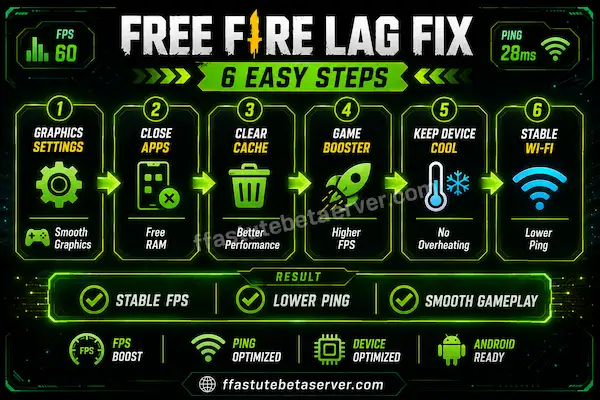
Here is the short version of how to fix lag in Free Fire, in the order worth trying. Every step is free, and you should test each one in Training Mode before moving to the next.
- Apply the settings for your RAM tier from the tabs above: Free Fire, then Settings, then Graphics.
- Close every background app — on lower tiers this frees 300–500 MB that the game can put to use.
- Clear the game cache weekly from Settings, Apps, Free Fire, Storage, Clear Cache. Never “Clear data”.
- Turn battery saver off before you play; it throttles your processor on purpose.
- Keep the phone cool: remove the case, stop charging while playing, take a short break between ranked matches.
- Test your connection before blaming the phone — an unstable link feels exactly like device lag.
- Keep 3–4 GB of internal storage free so the game can stream its assets without hitches.
Extra Fixes Most Players Miss
- Never play while charging; charging heat is the number one cause of late-match lag.
- Take the case off during long sessions — plastic traps heat against the chipset.
- Keep screen brightness around 50–70% instead of maximum; it cuts heat and battery drain.
- Avoid “RAM booster” apps that clear memory in the background; they make the game reload its assets.
- Turn off screen recording and streaming for ranked matches; both cost real frame time.
- If you play on a hotspot, keep the phone near the router instead of in another room.
How do I fix lag in Free Fire permanently?
There is no permanent switch — find the actual cause and fix that. Measure the device to see whether the bottleneck is graphics, heat, CPU or connection, then apply that one fix and test it before changing anything else.
Does clearing the Free Fire cache fix lag?
It helps at the margins. A large stale cache slows loading and causes hitches in the first match after an update. Use “Clear cache”, never “Clear data”, or you lose your local settings and login.
Free Fire FPS Boost Settings — How to Increase FPS in Free Fire
A free fire fps boost is not a magic number; it is the sum of a few settings and habits that stop your frame rate from dropping. Everything below is free, and none of it needs a third-party app or a modified game package.
Free Fire FPS Boost Settings That Work on Android
- Frame rate over graphics — set the frame rate as high as your phone can hold, then lower graphics until it holds there.
- Shadows and effects off — these two options cost more frame time than every other setting combined.
- High FPS mode on — it lifts the frame-rate ceiling on devices the game would otherwise cap.
- Game Mode or Game Booster on — Samsung’s Game Launcher and Xiaomi’s Game Turbo prioritise CPU and RAM for the game.
- Do Not Disturb on — one notification can drop a frame mid-fight, so block pop-ups before ranked.
- Storage headroom — below 2 GB free, read and write speeds fall and micro-stutters appear even with perfect settings.
How to Increase FPS in Free Fire Without Making It Look Bad
You do not have to run the ugliest settings on the menu. Turn off shadows, anti-aliasing and particles first, keep the resolution one step higher than the bare minimum and leave textures alone. On most phones this looks noticeably better than full “Smooth” while costing the same frame time, because shadows and effects are what your GPU is actually spending its time on.
Best Free Fire FPS Booster Apps — Pros and Cons
Pros
- Game boosters can free RAM and block notifications automatically
- GFX tools expose graphics options that some phones hide in the in-game menu
- Both are useful for testing which settings your device can hold
Cons
- No app can make a slow GPU faster, whatever the description claims
- Many boosters run background services that drain battery and add heat
- Aggressive “RAM cleaners” kill the game’s own cache and cause longer loading
- Some request permissions a graphics tool has no reason to need
How can I increase FPS in Free Fire?
Lower the settings that cost the most frame time — shadows, effects and anti-aliasing — and set the frame-rate cap as high as your device can hold steadily. Then close background apps, disable battery saver and keep the phone cool.
Which FPS setting is best for Free Fire?
The highest one your phone can hold without dropping. A stable 60 FPS is better than an unstable 90, and on weaker devices a stable 30 beats a 45 that keeps collapsing.
Free Fire Lag Fix APK and Lag Fix App — What Is Actually Safe
A free fire lag fix APK is one of the most searched things in this niche, and one of the riskiest. Most “lag fix” apps on the internet are either a graphics settings shortcut dressed up as a fix, or a modified package that asks for permissions it has no reason to need.
A real performance tool never asks for your Garena password, never asks you to log in and never promises a frame rate your hardware cannot deliver. If an app claims 90 FPS on a low-end chipset, it is either lying to you or faking the counter.
- Stay with sources you can identify, and check that the package follows Free Fire’s real naming.
- Never enter your main account password into any tool, booster or config app.
- Prefer the in-game graphics menu — every setting a “lag fix” app changes usually lives there already.
- Uninstall any booster that keeps a permanent background service; it is trading battery and heat for nothing.
Is a Free Fire lag fix app safe?
Only if you trust the source and it never asks for your account details. A performance tool does not need your login, so any app requesting it should be treated as unsafe.
Can a lag fix APK give me more FPS?
It can only switch on lower graphics settings the game already supports. If your frame rate was limited by graphics load you will see a real gain; if it was limited by heat or a weak GPU, you will not.
Does a Free Fire Lag Fix Config File or GFX Tool Really Work?
Partly, and it is worth being precise about which part. A free fire lag fix config file or a GFX tool only switches on graphics settings the game already exposes — the same options you can change yourself in the in-game menu. If your phone was running the game higher than it can hold, that change genuinely helps.
What none of them can do is create performance your hardware does not have. A config file cannot make a low-end GPU render faster than it can; at best the counter reads higher while frames are being dropped.
Free Fire Lag Fix Config File Download — What It Actually Changes
A config file is a settings profile. It sets resolution, shadows, effects and frame rate for you so you do not have to hunt through menus. That is genuinely convenient, and it is the whole of what it does. If a config file is advertised as unlocking more FPS than the game allows, it is overselling a settings preset.
Game Booster and Fire GFX — Do They Remove Lag?
Game boosters free memory and block notifications, which does help on 2 GB and 3 GB phones. Fire GFX-style tools expose graphics options some phones hide. Neither one removes lag caused by thermal throttling or a weak GPU, and both can add heat if they run heavy background services. Use them for the settings, not for the promise.
Is a Free Fire lag fix config file safe to use?
A settings profile is not dangerous by itself. Be careful with any file that asks you to install a modified game package or to log in with your account, because that is where the risk sits — not in the graphics values.
Does a GFX tool increase FPS?
Only by turning on lower graphics settings the game already supports. The gain is real when graphics load was your bottleneck, and close to zero when heat or a weak GPU was.
Free Fire Smooth Settings for Android (Best Settings for Low-End Devices)
If you searched for free fire smooth settings android, this is the complete set for a low-end phone. Copy it exactly, then adjust one line at a time.
| Setting | Low-end (1–3 GB) | Mid-range (4–5 GB) | High-end (6 GB+) |
|---|---|---|---|
| Graphics | Smooth | Standard | Ultra |
| Frame rate | Low to High | High (60 FPS) | Ultra |
| Resolution | Low | HD | Full HD |
| Shadows | Off | Off | On |
| Effects and particles | Off or Low | Medium | High |
| Anti-aliasing | Off | Off | On |
| Auto-adjust graphics | On | On | Off |
| High FPS mode | On | On | On |
| Brightness | 50–70% | 50–70% | Any |
| Background apps | Close all | Close 1–2 | Not needed |
Two settings are missing from most lists and matter more than people expect: screen brightness and background apps. A phone running at maximum brightness gets hotter, and heat is what turns the fourth match into a slideshow. Closing apps on a low-end device is not superstition — it is memory the game can use.
What are the smoothest settings for Free Fire on Android?
Smooth graphics, Low resolution, shadows and anti-aliasing off, High FPS mode on, brightness around 60% and every background app closed. That is the combination that holds the steadiest frame rate on a low-end Android phone.
Why Is My Free Fire Lagging? (Free Fire Lag Problem Explained)
A free fire lag problem almost never has one cause, which is why generic “best settings” videos keep failing for people. There are four real causes and they need four different fixes.
Why Free Fire Lags Even on 4GB or 8GB RAM
Because RAM is not the bottleneck on those devices. Above 4 GB, stutter usually comes from the GPU being pushed by effects and shadows, from the phone heating up, or from the connection. If your phone has plenty of RAM and still lags, stop changing graphics settings and check heat and ping instead.
Why Free Fire Lags After 20 Minutes of Playing
That is thermal throttling. Every phone has a heat budget, and once it is spent the processor slows itself down to avoid damage. The pattern is easy to spot: smooth at the start, stutter in later matches, warm back of the phone. The fixes are physical — remove the case, stop charging while you play, take a short break between matches and avoid direct sunlight.
Why Free Fire Lags Only During Fights
Because a fight is the most expensive moment in the game. Six players, their skins, their abilities and their effects all arrive on screen at once, and the CPU has to keep track of every one of them. That is why lag shows up in Clash Squad and the final zone but not while you are looting. Lower effects first, then shadows, then the frame-rate cap.
Why is my Free Fire lagging so much?
In order of likelihood: heat (thermal throttling), graphics set above what the device can hold, too many background apps, low free storage, and an unstable connection. Test one cause at a time instead of changing everything together.
Why does Free Fire lag only sometimes?
Because the expensive moments are rare. Rotations and looting are cheap; crowded fights and the final zones are not. A phone that drops frames only during fights has a CPU or effects bottleneck, not a problem at the bottom of the settings menu.
Free Fire Game Lag Problem — Match the Symptom to the Fix
Instead of guessing, match what you actually see to the table below. Most free fire game lag reports turn out to be one of these six, and a free fire lag fix that starts from the symptom beats one that changes five settings at once.
| Symptom | Likely cause | Fix |
|---|---|---|
| Stutter only during fights | CPU or memory limit, background apps | Close all apps, drop one graphics tier, set effects to Low |
| Lag started right after an update | New assets and a stale cache | Clear the game cache, keep 3–4 GB storage free |
| Smooth at first, worse after 15 minutes | Thermal throttling | Case off, stop charging, break between matches |
| Low FPS from the very first minute | Graphics set above what the device can hold | Apply the tier settings for your RAM |
| Stutter in Clash Squad but not Battle Royale | More players and effects on screen | Low effects, shadows off, High FPS mode on |
| Freezes even in menus | Storage nearly full or a background download | Free up storage, stop downloads, restart the phone |
If your frame rate is stable and the game still feels delayed, your problem is connection rather than device — test your ping and jitter with the Free Fire ping test tool before you change anything else, because high ping feels exactly like lag on a phone that is running perfectly.
Free Fire Lag Fix for Beta Testing (Beta Server Settings)
Beta builds run heavier than the live game. Unoptimised code, higher-resolution test assets and debug processes all add load, so a phone that runs the official server smoothly can feel rough inside a beta environment.
The fix is simple: apply one tier lower than your normal settings. If you use Standard graphics on the live game, use Smooth while beta testing. That keeps the device stable enough for you to spot real game issues instead of confusing device lag with a beta bug.
It matters even more on the Astute Beta Server beta environment, where you are testing pre-release builds precisely because they are heavier. A stable device is the only way to give useful feedback — and if you have not set one up yet, the Astute Beta Server APK download and the Free Fire beta testing guide cover the whole setup. Once you are in, use the same preset as your RAM tab above, then drop one tier.
Performance is only half of a good setup. If your aim feels off after changing graphics, adjust it in the Free Fire sensitivity settings tool instead of copying numbers from a video, and if matches feel delayed rather than choppy, work through the Free Fire proxy server guide to bring your ping down.
Frequently Asked Questions
Conclusion
The right settings can change your whole experience, and you do not need a flagship phone to get them. Test your device, apply the settings for your RAM tier and fix heat and connection before you buy anything.
Run the free fire lag fix tool again after each change so you know it actually helped — and if your frame rate is already stable, stop tuning graphics and go fix your ping instead.