
Free Fire Tools – Sensitivity, Headshot, Lag Fix & Ping Test
If you play Garena Free Fire or Free Fire Max, using the right tools can improve your gameplay performance.
These tools help you optimize sensitivity, improve headshot accuracy, and check device compatibility easily.
All tools are free, fast, and designed for mobile gamers.
Free Fire gaming tools help players improve sensitivity settings, reduce lag, optimize FPS performance, and increase headshot accuracy during competitive gameplay. These tools are especially useful for ranked matches, beta testing, and advanced mobile gaming.
No Download No Account needed. All tools are custom built specially for FF players.
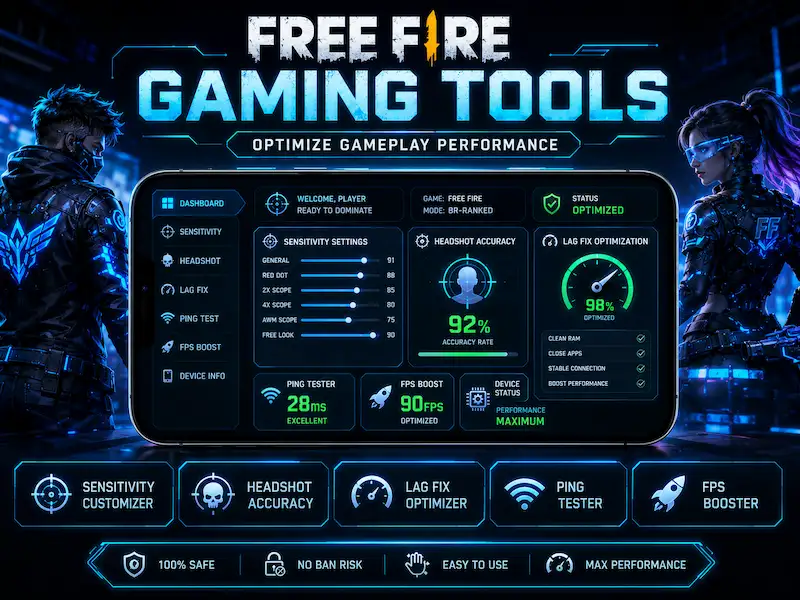
Best Free Fire Tools for Android Players
FF Sensitivity Settings Tool
Find your ideal sensitivity in seconds. Based on your device type low end, mid range, or high end. Better sensitivity means smoother aim and more headshots every session.
Free Fire Headshot Rate Calculator
Calculate your real headshot accuracy. Track progress over time. Know exactly where to improve instead of guessing.
Free Fire Lag Fix & Device Optimization Tool
Get optimized FPS and graphics settings for your exact device RAM. Reduce frame drops and play smooth on any Android phone.
Free Fire Ping Test Tool
Test your internet ping and connection stability before a match.
Lower ping means faster response and winning more close fights.
FF Name Style Generator
Create Free Fire style Name 2026
Create stylish Unicode name styles for your Free Fire and Free Fire MAX profile. Crown, star, fire, guild, Arabic all styles with one-tap copy. 2026 updated.
What These Free Fire Tools Do
Most players spend weeks guessing the right sensitivity. They change one number, lose a few matches, then change it back. That is wasted time. The sensitivity tool takes your device type and gives you a recommended starting point — so you can stop guessing and start improving.
Headshot rate is the number that separates average players from ranked climbers. Most players have no idea what their real headshot percentage is. The headshot calculator shows you the exact number so you know precisely where to improve.
Lag kills fights. A 200ms frame drop at the wrong moment costs you a gunfight you should have won. The lag fix tool checks your device RAM and shows you the exact graphics and performance settings to reduce frame drops on your specific phone.
Ping testing before a session takes 10 seconds. It can save you from an entire match of delay and rubber banding. The ping test tool checks your connection quality and tells you whether your network is ready for competitive play.
Who Should Use These Tools
These tools work for every type of Free Fire player.
If you are a beginner, the sensitivity tool gives you a solid baseline instead of copying settings from YouTube made for a completely different device on a different phone.
If you play ranked, tracking your headshot rate with the calculator tells you whether your aim is actually improving between sessions — or whether you are just getting lucky.
If you play on a low end or mid range Android Redmi, Tecno, Infinix, Samsung A series — the lag fix tool is the most immediately useful. Getting an extra 10-15 stable FPS on a budget device changes how the game feels completely.
If you get random connection drops or lag spikes during fights, the ping test helps you understand whether the problem is your network, your ISP, or the Garena server distance.
FF Gaming Tools for OB54 Beta Testing
These tools are especially useful during beta server testing. When you use Astute Beta Server APK to test OB54 features, your device settings need to be different from the official server. Beta builds sometimes run heavier than the public version.
Use the lag fix tool to optimize your settings before a beta session. This helps you give accurate feedback about actual game performance — not confuse device lag with real game bugs.
Use the ping test before launching beta. A stable connection means your beta testing reflects the real game experience, not a broken network session.
Download Astute Beta Server APK — Test OB54 Free
Pro Tips for Getting the Most From These Tools
Test ping at the time you normally play. Network conditions at 2pm are different from 10pm when everyone is online. Run the ping test during your actual gaming hours for an accurate reading.
For sensitivity, use training mode for at least 30 minutes after applying new settings before deciding if they work. First impressions of new sensitivity are almost always wrong because your muscle memory has not adjusted yet.
For headshot rate, track it over at least 10 matches before drawing conclusions. One great match and one bad match tell you nothing meaningful. The pattern over 10+ matches shows where you actually stand.
Use lag fix settings as a starting point, not a final answer. If your device runs cooler and smoother with slightly lower settings than recommended, go with what works on your phone.
👉 Download Astute Beta Server APK 👉 Explore all features on Astute Beta Server
👉 Free Fire Proxy Server Guide